
Overview
AI Landing Pages
Prompt Claude, Lovable, Bolt, or v0 to design a custom, animated, multi-page landing page for your event. Gatsby wraps it with the RSVP frame and runs registration like a native template.
Premium Landing Pages, Built by AI
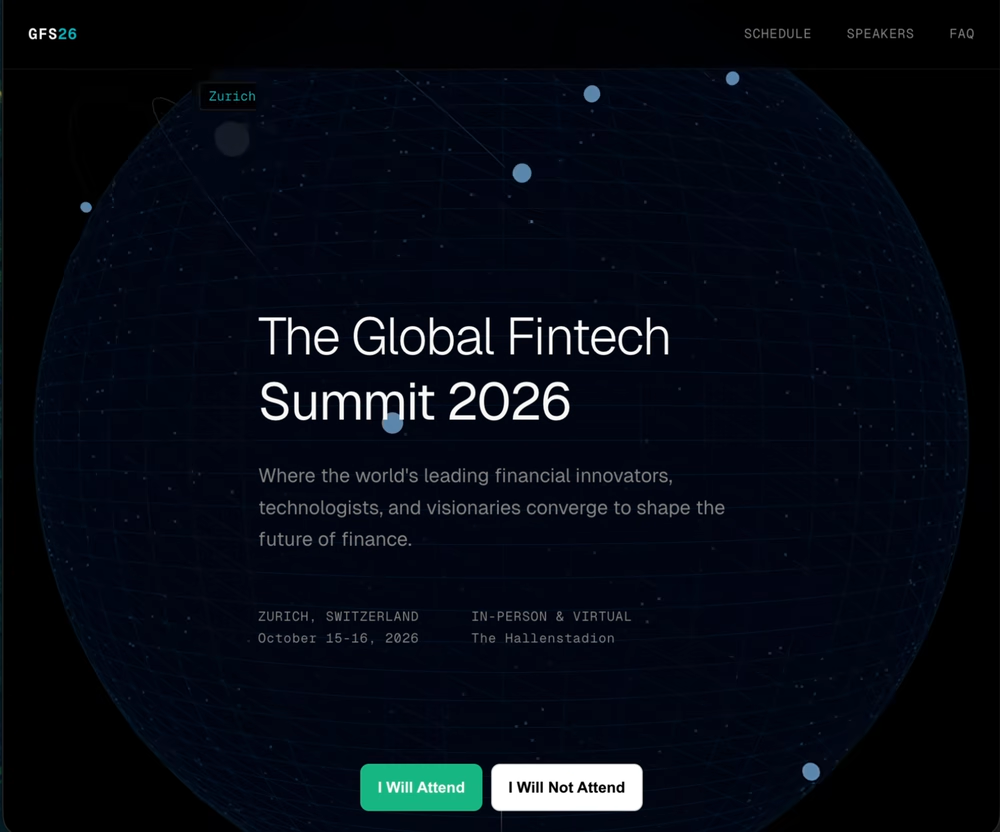
Section titled “Premium Landing Pages, Built by AI”Tell Claude, Lovable, Bolt, or v0 what you want. An animated globe that pulses with your event location. A custom typeface. A multi-page agenda with anchor-link navigation. A scroll-driven hero that introduces your speakers. The AI ships a fully designed site in minutes. Point Gatsby at the published URL, and Gatsby wraps it with the RSVP frame guests need to register, the confirmation email they receive, and the guest-list tracking your team relies on.
The design feels like you hired an agency. The registration plumbing comes with Gatsby.
What You Can Build Now
Section titled “What You Can Build Now”A new path opens up for the page guests land on. Describe what you want in plain language to a tool like Claude, Lovable, Bolt, or v0, and it produces a polished, custom-designed site in minutes. Animation, multi-page navigation, custom typography, a bespoke brand expression — anything you can describe in a prompt is on the table. The kind of page that used to mean an agency engagement now takes an afternoon.
What AI Landing Pages unlock
Animation as a core part of the design. A particle hero. A scroll-driven map. A dynamic chart that loads in. Anything that has to move.
Anchor links and multi-page navigation. A nav bar that scrolls to “Agenda,” “Speakers,” and “Venue” within the page. A separate “About the host” page. A press kit page. Anything past a single scroll.
A bespoke brand expression. A flagship event where the page itself is part of the brand moment. The look and feel a great in-house designer would produce.
A site that already exists. Your marketing team already built the conference site on Webflow or Framer. You want guests to register through Gatsby without sending them to a separate URL.
The Structure
Section titled “The Structure”Your AI-built site loads inside a Gatsby landing page. Guests don’t see the seam. They scroll your custom design, then hit Accept or Decline on the Gatsby RSVP frame. When they click, the standard Gatsby registration flow takes over: confirmation email, calendar invite, guest list update, all the same as a native template.
The AI-built site doesn’t need to know anything about Gatsby. No RSVP button. No registration form. Tell the AI to leave those out. Gatsby supplies them.
What Gatsby handles
The RSVP buttons. The registration form. The confirmation email. The calendar invite. Capacity and waitlist logic. Per-guest tracking. Survey questions. Everything that touches your guest list runs through Gatsby exactly as it would for a native landing page.
What the AI-built site handles
The visual design. The copy. The animations. The agenda layout. The speaker bios. The navigation structure. Anything visual or content-related is yours to control on the site you publish.
Setting It Up
Section titled “Setting It Up” Steps to publish an AI Landing Page
-
Build the page with an AI site builder.
Claude, Lovable, Bolt, or v0. Or Webflow, Framer, or hand-coded if your team prefers. Whatever produces a hosted webpage.
-
Publish to a public URL.
Most AI site builders include a free preview URL. Some require a paid plan to publish. See the hosting checklist below before you commit to a tool.
-
Copy the published URL.
Open it in a fresh incognito window to confirm it loads without a login prompt.
-
In your Gatsby event, open the Landing Page editor.
From your event’s RSVP tool, open Landing Page Templates and start a new template from Portal · Embed your own page. To add embedding to an existing template instead, add an Embed block and choose Bring your own site from the Embed Type dropdown.
-
Paste the URL.
Gatsby loads your site inside the template preview so you can see exactly what guests will see.
-
Configure the Gatsby RSVP frame.
Choose where the Accept / Decline buttons sit, what they say, and whether to include the Maybe option. Same controls you’d use on any landing page.
-
Set the template as in-use and send a test invite.
Send the invite to yourself first. Click through, scroll the page, and submit the RSVP to confirm the registration flow lands cleanly.
What the preview shows you
The Gatsby template preview renders your AI-built site exactly as a guest will see it, including how the RSVP frame overlays on top. Cycle through desktop, tablet, and mobile preview to confirm responsiveness. AI-generated sites are usually mobile-friendly out of the box, but it’s worth a quick check.
A Prompt That Works
Section titled “A Prompt That Works”Here’s a prompt that produced the Fintech summit example at the top of this page. Adapt the bracketed parts to your event and use it as a starting point.
I want you to create an elegant landing page for a global Fintech conference in Switzerland. Include a two-day agenda and a speaker section. The hero should include an animated visualization of financial centers across the globe, highlighting the event as the epicenter.
This is going to be embedded in another site, so leave out any RSVP or registration buttons. I’ll handle that myself.
Publish it to a public URL where login isn’t required so I can embed it cleanly within an iframe.
Why each part matters
The first paragraph is the brief. Be specific about tone, content sections, and any signature visual you want. “Elegant,” “playful,” “editorial,” and “minimal” produce very different results. The more concrete you are about content sections (hero, agenda, speakers, sponsors, venue, FAQ), the less you’ll have to add later.
The second paragraph protects the integration. Without it, the model will add its own Eventbrite-style RSVP button or registration form. Both would duplicate the Gatsby frame and confuse guests.
The third paragraph sets the hosting requirement. Most AI site builders default to a public preview URL. Some default to private. Naming it up front saves a round-trip.
Things to iterate on after the first generation
Most prompts won’t land perfectly on the first try. Common follow-ups:
- “Change the hero animation to something more subtle.”
- “Add a sponsor logo strip below the speaker section.”
- “Use a serif typeface for the speaker names.”
- “Make the agenda a tabbed view, one tab per day.”
- “Remove the contact form at the bottom. Registration is handled separately.”
Iterate inside the site builder until you’re happy with the page, then publish. The Gatsby side doesn’t need to change while you iterate. Each republish updates what your guests see automatically.
The Three Rules
Section titled “The Three Rules” It must be hosted at a public URL
A preview that only loads inside the builder’s editor isn’t enough. You need a real URL that you can open in a fresh incognito window and see the full page.
Most AI site builders offer a free public preview. Some require a paid plan to publish. Check your tool’s pricing page before you commit:
- Claude Artifacts: Public sharing is available on most plans.
- Lovable: Free tier includes a public preview URL.
- Bolt: Free preview URLs available; custom domains require a paid plan.
- v0: Public deployments available on free and paid plans.
- Webflow / Framer: Free tier publishes to a subdomain. Custom domains require a paid plan.
If your tool only offers private previews on its free tier, you’ll need a paid plan or a different tool.
It must not be behind a login
If the site requires the visitor to sign in to view it, the embed will show a login screen instead of your page. Some AI builders ship with a default “preview password” or auth gate. Turn those off before you copy the URL.
It must not be password-protected
Same logic as login. A password-protected page renders a password field, not your design. If your tool added one by default (some Webflow and Framer templates do), remove it before publishing.
The fast test. Open the URL in an incognito window. If you see your full page without any prompt to log in, enter a password, or accept an invitation, you’re good. If you see a wall of any kind, fix it before pasting the URL into Gatsby.
One More Constraint Worth Knowing
Section titled “One More Constraint Worth Knowing”Some hosts may block their pages from being embedded inside other sites. They do this by sending a hidden instruction to the browser — a setting called a Content-Security-Policy header — that says “don’t let anyone display me inside another page.” The specific line that blocks Gatsby looks like frame-ancestors 'none' (or a list of allowed sites that doesn’t include gatsby.events). If you paste a URL into Gatsby and the preview shows an empty frame or a “refused to connect” error, this is almost always the cause.
Most AI site builders don’t block embedding. The ones that do usually offer a way to allow it. If you hit this, you have three options — from easiest to most involved.
⚠️ One important caveat. Some hosts enforce embed-blocking at a level the page itself can’t override. If the site returns response headers like the ones below, Options 1 and 2 won’t help — there’s no setting to toggle and no safelist to add Gatsby to. Option 3 (download and rehost) is your only path.
x-frame-options: DENYcontent-security-policy: frame-ancestors 'none'; base-uri 'self'; object-src 'none' Option 1: Remove the restriction in your builder's settings
Look in your builder’s dashboard for a section called “security headers,” “custom headers,” or “advanced.” If you find one, look for the line containing frame-ancestors 'none' and delete it. Republish your site, then paste the URL back into Gatsby — the preview should load.
If you can’t find a setting like this, your builder probably doesn’t expose it. Move on to the next option.
Option 2: Add gatsby.events to the safelist
If your security team wants to keep blocking embeds from everywhere except Gatsby, you don’t have to remove the restriction — you can add Gatsby as an allowed exception instead. Change the line to read:
frame-ancestors 'self' https://gatsby.events
That tells the browser “still block embedding for everyone, but allow Gatsby specifically.” Republish and the preview will load.
This is the right path when your IT or compliance team has signed off on the security header and doesn’t want it removed wholesale.
Option 3: Download the code and republish it somewhere you control
If your builder won’t let you change the header at all, the last option is to take your site’s code with you. Most AI builders have an “export” or “download code” button — use it to get the source files.
Once you have them, open the project in a text editor (or hand it to a developer) and search for frame-ancestors. Wherever it appears, delete that line. The restriction sometimes lives inside the site’s code, and sometimes inside a small configuration file like _headers or next.config.js — anything with frame-ancestors 'none' needs to go.
Then upload the project to a host that doesn’t add the restriction by default. Vercel, Netlify, and Cloudflare Pages all work and all have free tiers. Once it’s live at the new URL, paste that URL into Gatsby and you’re set.
Common Questions
Section titled “Common Questions” Can I edit the AI-built site without touching Gatsby?
Yes. Edits you publish on the AI builder appear automatically the next time a guest loads the Gatsby landing page. You don’t need to touch Gatsby unless you’re changing the RSVP frame itself.
What happens if my AI builder or host goes down?
The Gatsby page still loads, but the AI-built content area will show a blank frame or a browser error. Pick a reputable host. If reliability matters, lean toward established platforms (Vercel, Netlify, Cloudflare Pages, Webflow, Framer) over preview URLs from a brand-new builder.
Can the AI-built site live on my own domain?
Yes. As long as the URL is public and isn’t blocked from iframing, the domain doesn’t matter. Pointing your custom domain at the host first is fine. Gatsby just needs the URL.
Do guests notice the seam between the AI page and the Gatsby frame?
Not unless they go looking. The Gatsby URL is what they see in their browser. The AI-built site loads inside it. To them, it’s one page.
Will analytics on the AI-built site capture Gatsby traffic?
Yes, if you’ve set up analytics on the AI-built site. Tools like Plausible, Fathom, or GA will record visits the same way they would on any embedded page. Cross-domain tracking has the usual caveats. If precise attribution matters, talk to whoever runs your analytics stack.
Does this work on mobile?
Yes, as long as the AI-built site is responsive. Most AI builders generate responsive layouts by default. Check the Gatsby template preview’s mobile view before going live.